








How to set up Toonloud, step by step
Everything a host does before the event, what guests do on the night, and what you keep afterwards. Setting up takes a couple of minutes; a guest needs about half a minute.
Last updated November 21, 2026
You switch portraits on for your event and print one QR code. Guests scan it, take a selfie and pick a style. About half a minute later an AI-drawn portrait appears on their phone and on the big screen, with their name and message. Afterwards you print every portrait as a poster.
- Setup time
- A couple of minutes
- Time per guest
- About 30 seconds
- Guests need
- A phone. No app.
- You need
- A screen and internet
Before the event: set it up
Eight short steps. You only do them once per event.
Create your account
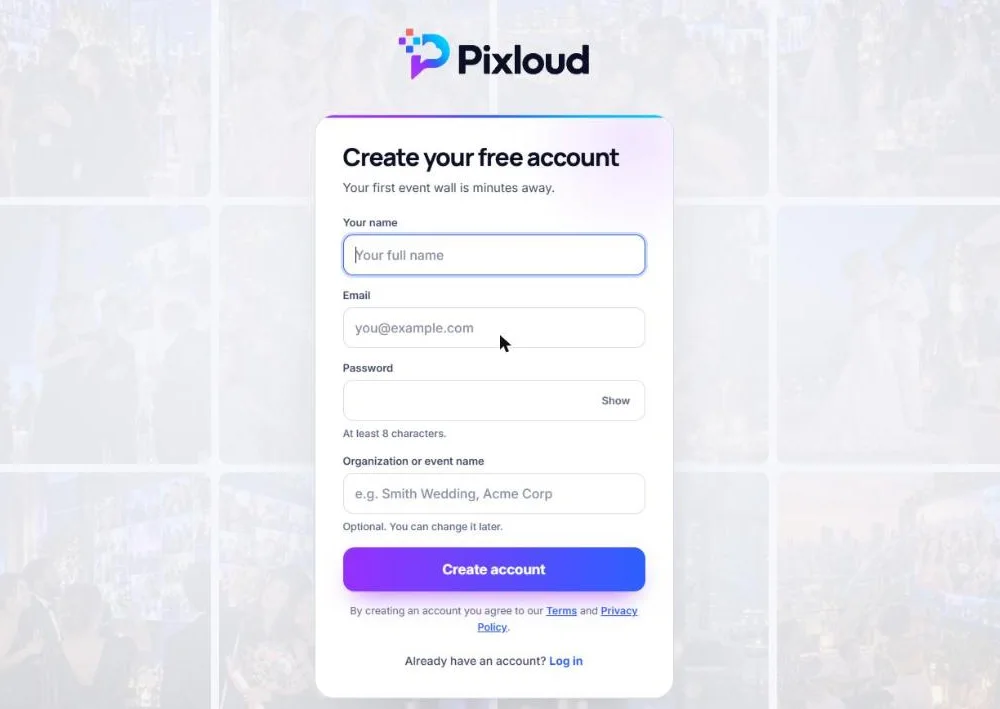
Click Start free. Type your name, email and a password, and you are taken straight in. You will get an email asking you to confirm your address.
Toonloud runs on Pixloud, our live photo wall, so the sign-up page carries the Pixloud name. It is one account for both.
Create your event
Give the event a name and a date. This is what guests see at the top of their page and what goes on your poster later.
Open Toonloud portraits
Open your event. Under Quick links, click Toonloud portraits. Tick Let guests get their portrait drawn.
Choose the styles
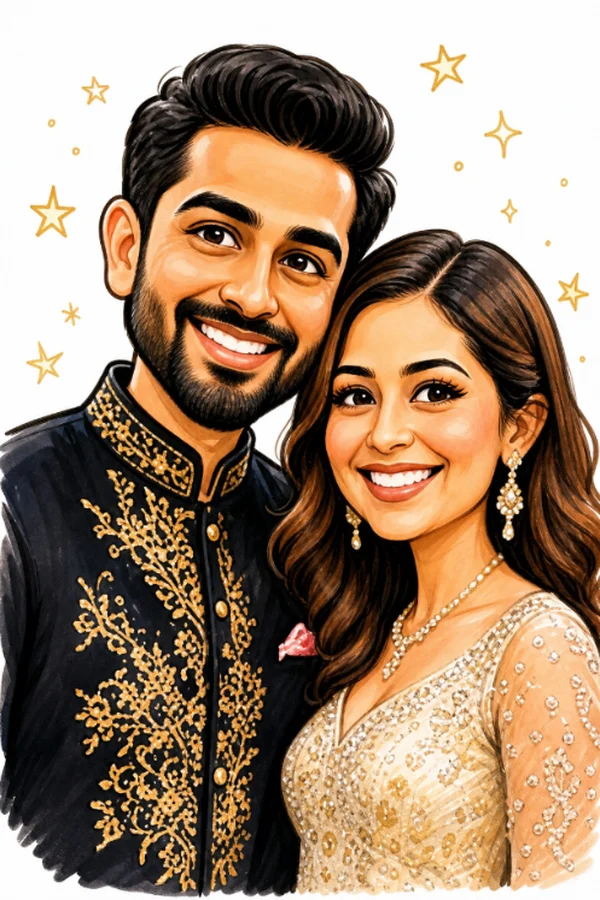
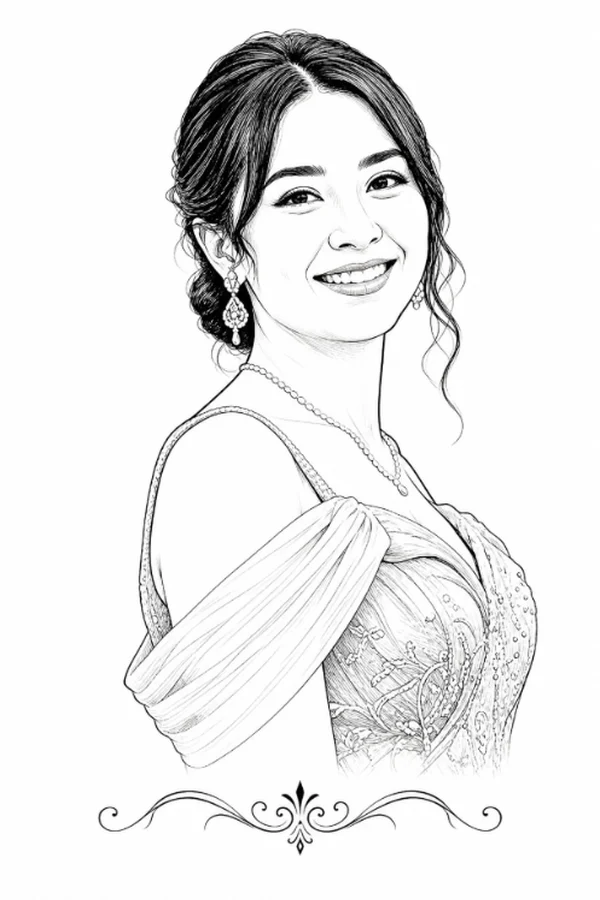
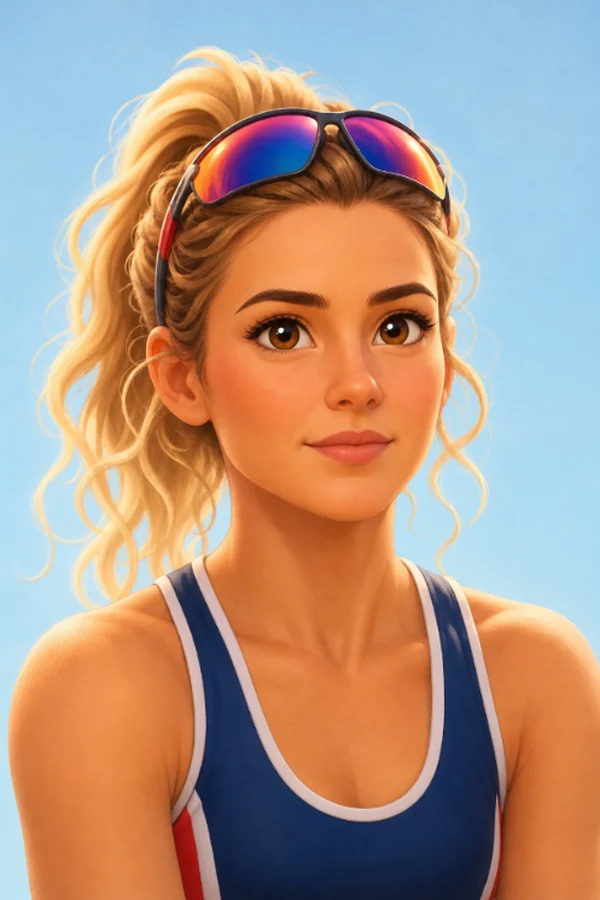
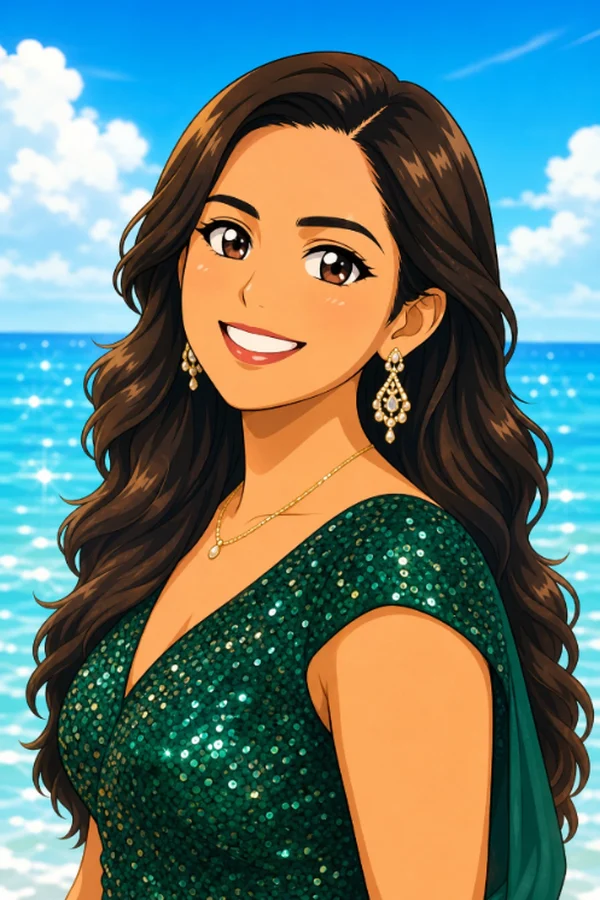
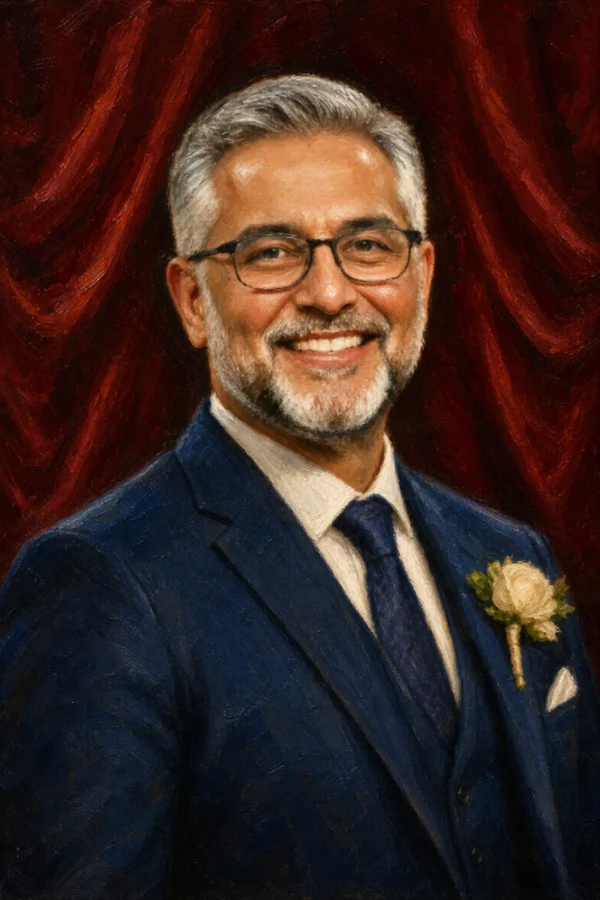
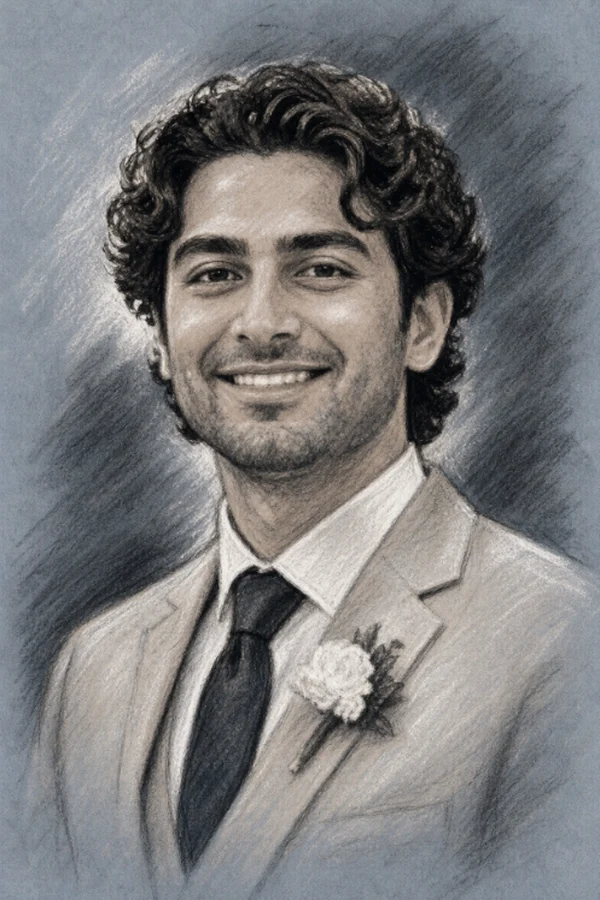
Under Styles, tick the styles guests can choose from, or tap a Quick pick: Wedding, Birthday & kids, Sweet 16 & teens, Sports & teams, School & college, Work & corporate, or All styles. Each quick pick switches on six styles that suit the room.
Set the limits and your theme
- Set Portraits per phone so one guest cannot use them all.
- With a pack, type a short Theme such as "gold and ivory, roses". It adds your colors and small props to every portrait.
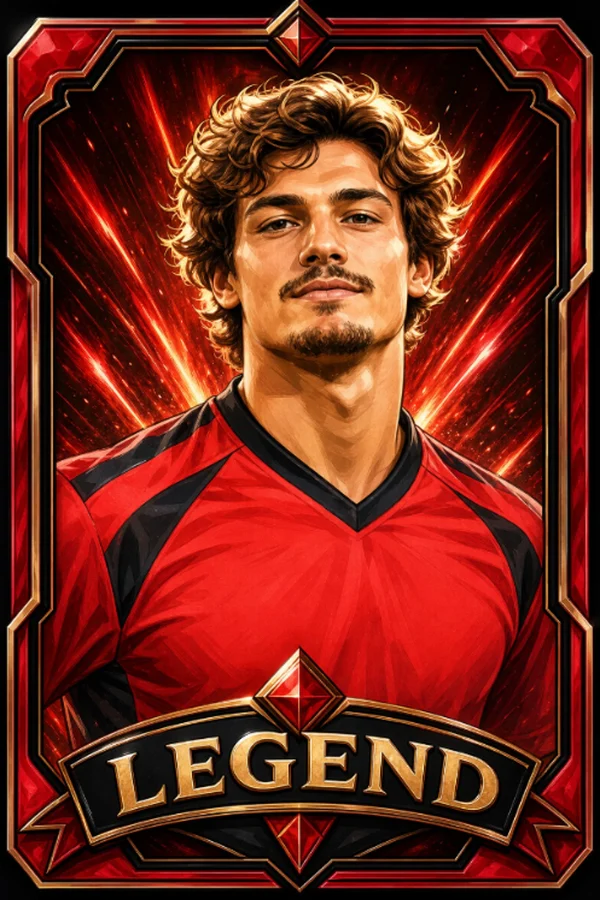
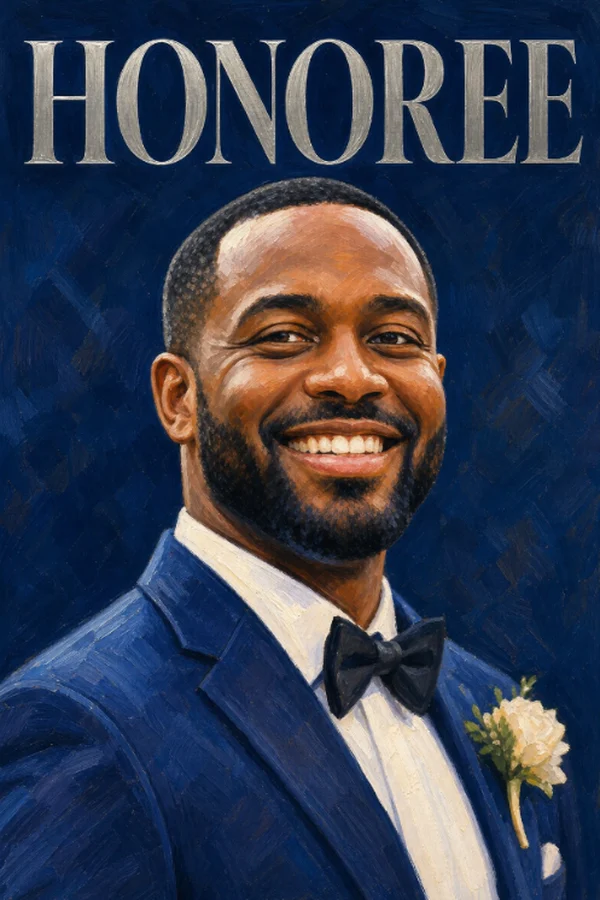
- Type the name for trading cards and magazine covers, up to 24 letters.
- Planning a large poster? Tick High detail. Each portrait then uses 3 from your pack.
Decide what reaches the screen
Choose whether portraits go on the wall straight away, or wait in your approval queue like photos. Then click Save. You will see Saved. Portraits are on.
Try it on yourself
Before the event opens, use the private test link on the Toonloud page. Take a selfie, pick a style and watch your own portrait appear. Each test uses one portrait.
Print the QR code
Guests use one QR code. Print it on table cards, or leave it showing in the corner of the big screen. If you also collect photos, it is the same code.
On the night: what happens
Open your event's live wall on a TV, a projector or a laptop. On a Fire TV you can use the free Pixloud TV app. Then guests do the rest.
Scan the code
The guest points their phone camera at the QR code. A page opens in the browser. They tap Get your portrait drawn. There is no app and no account.
Take a selfie
They tap Take a selfie or Choose a photo. Two or three people in one photo is fine. If the picture is too dark or blurry, the page asks for a better one.
Pick a style and add a message
They add a name and a short message, pick a style and tap Draw my portrait.
Watch it appear
After about half a minute the portrait appears on their phone and on the big screen, with their name and message. They can tap Save and share my portrait or Draw another.
On the big screen
Each new portrait plays as it is drawn, with the guest's name and message, then joins the wall.
If you approve first
Portraits wait in your approval queue. Approve them from your phone and they go up.
If you run out
Guests see "All portraits are drawn". Add another pack and they can carry on.
After the event: what you keep
Only approved portraits are used. Test portraits are left out.
Make the poster
Open your event, click Toonloud portraits, then Make the poster. Pick a design: Classic (cream and gold), Party (bold and bright), Team (your color) or Clean (simple white). Click any words to change them, choose a paper size (12 × 16 in, 18 × 24 in, 24 × 36 in or Letter), then Print or save as PDF and send the file to any print shop.
Make the mosaic
On the same page, switch to Mosaic. Click Choose the main photo and pick one photo of the couple or the guest of honor. Every guest's portrait becomes a tile, and together they make that photo. The main photo stays on your computer; it is not uploaded.
Let guests keep theirs
Every guest has their own keepsake page. They can save the picture, watch it being drawn again, and make a story-size or square version with your event name and date. Sticker portraits can be saved with no background.
If something goes wrong
A guest took a selfie but no portrait appeared
Give it a minute; portraits take about half a minute and a busy moment adds a little. If you approve portraits first, it is waiting in your approval queue. If the selfie was too dark or blurry, the page will have asked for a better one.
Guests see "All portraits are drawn"
Every portrait in your pack has been used. Add another pack to the event from your dashboard and guests can carry on straight away.
A guest cannot open the page
Check that their phone has Wi-Fi or mobile data, and that they scanned the QR code with the phone's camera. If the venue Wi-Fi blocks websites, ask them to switch to mobile data.
The big screen is not updating
The screen needs an internet connection too. Refresh the wall page. If you approve portraits first, new ones only appear after you approve them.
Give your guests something to talk about.
Set it up in a couple of minutes. Try 25 portraits free.
Start free